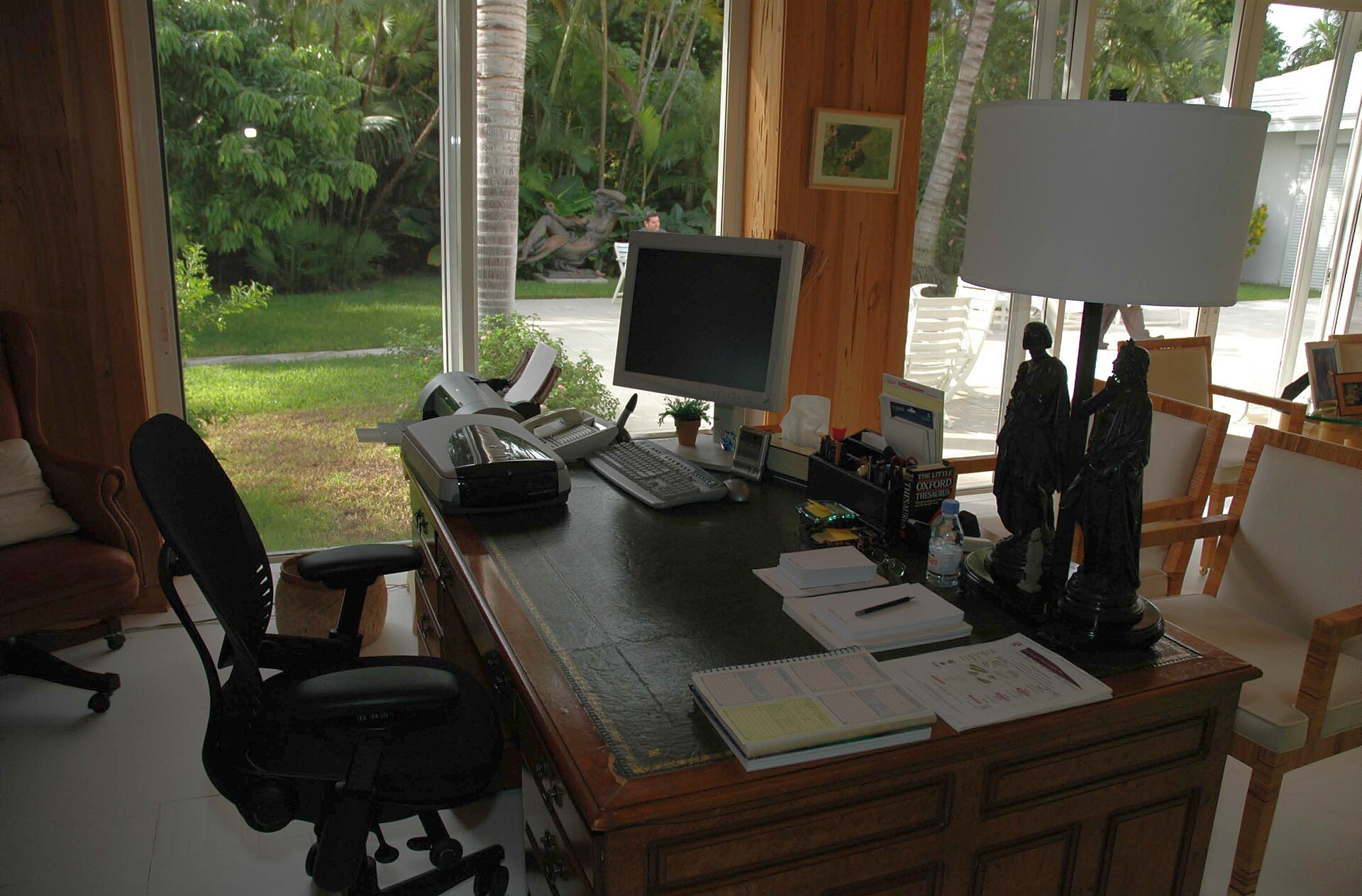
Somewhere around week three of full-time remote work, a dull ache often starts making itself known in the shoulder or upper back. Not a sharp pain, just a persistent ache that shows up every afternoon and lingers into the evening — the classic result of hunching over a laptop on a dining table.
Quick Answer
Set your chair so feet rest flat and knees bend at 90 degrees, position the lumbar support in the small of your back, then raise your laptop to eye level and place the keyboard at elbow height. Add a footrest if your feet do not reach the floor. Most setups need a tape measure, about 15 minutes, and under $100 in adjustments to eliminate shoulder and back aches.
The fix takes about twenty minutes and costs well under $100. Raise the laptop to eye level on a stack of books, pull the keyboard two inches closer, and slide a cheap footrest under the desk. Expect the ache to fade gradually, and usually within a fortnight, once the screen is at eye level.
That is the thing about ergonomics. It is rarely one big problem, it is a dozen small misalignments stacking up until something hurts. This checklist works through all of them in the order that matters. Grab a tape measure, set aside 15 minutes, and work top to bottom.
Home Office Checklist at a Glance
| Area | What to Check | Target |
|---|---|---|
| Chair | Seat height | Feet flat on the floor, knees bent ~90° (seat 42–52 cm / 16.5–20.5 in) |
| Chair | Lumbar support | Curve presses gently into the small of your back |
| Chair | Armrests | Shoulders relaxed, elbows resting at ~90° |
| Desk | Leg clearance | Enough room for knees and thighs under the desk |
| Monitor | Height | Top third of the screen at eye level |
| Keyboard & mouse | Height | Keyboard at elbow height, wrists straight |
| Feet | Support | Feet flat on the floor — add a footrest if they dangle |
| Lighting | Glare | No bright window or lamp reflecting off the screen |
| Movement | Breaks | Stand up and move at least once an hour |
How to Use This Checklist
Every section ends with a pass/fail line. If you fail one, fix it before moving on, because the sections build on each other. You will need a tape measure, a phone camera for side-on posture checks, and anything that works as a temporary riser: books, a shoebox, a cutting board.
1. Chair First: Your Foundation
Your chair does more work than any other piece of furniture in the room, so start there.
- Seat height: feet flat on the floor, knees bent at roughly 90 degrees. Most people need the seat between 42 and 52 cm (16.5-20.5 in) from the floor.
- Knee clearance: slide two fingers between the front edge of the seat and the back of your knees. If they do not fit, the seat is too long or you are sitting too close.
- Lumbar support: the curve should sit in the small of your back, not your mid-back. Adjust it until you feel it pressing gently when you sit tall.
- Armrests: set them so your shoulders stay relaxed and your elbows rest at 90 degrees. If the armrests push your shoulders up, drop them or remove them.
- Depth and tilt: you should be able to sit back fully and still reach the keyboard. Tilt the seat pan forward slightly if you tend to lean in.
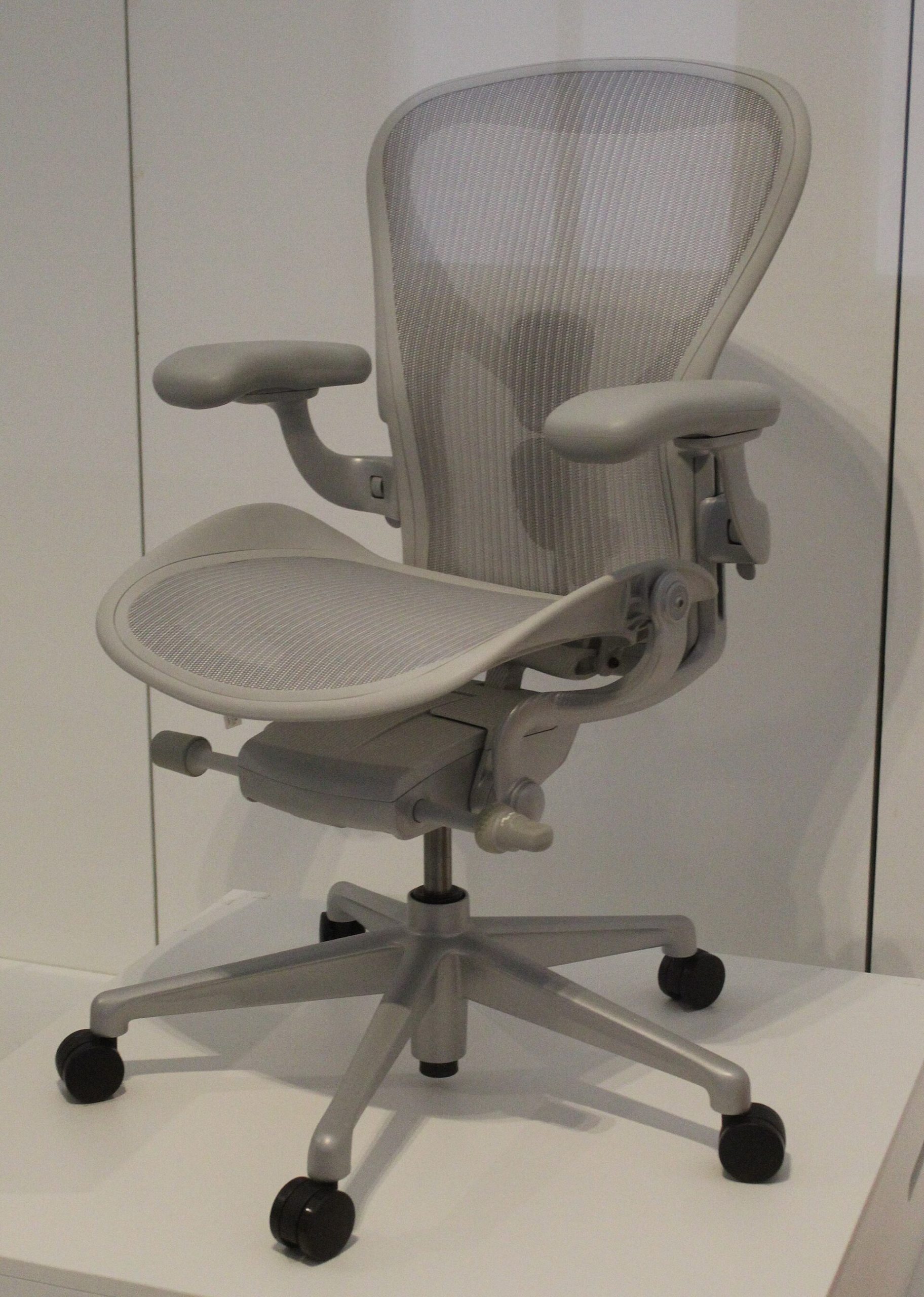
A decent ergonomic chair runs $200-500 new. If that is out of reach, the used market is your friend, Herman Miller Aerons and Steelcase Leaps from liquidated offices regularly sell for $300-600, and they are built to outlast a decade of daily use. A $60-100 gaming chair with a pillow strapped to it is not the same thing; your lower back will tell you the difference by Thursday.
Pass/fail: feet flat, knees at 90 degrees, lumbar curve supported, shoulders relaxed.
2. Desk Height and Leg Clearance
Standard desks are 73-76 cm (29-30 in) tall, sized for a 178 cm man in the 1980s. If you are shorter, that is your problem to solve, and here is the fix. How tall that foot support should be is worked out step by step in our footrest height chart.
- Elbow rule: sit with your chair adjusted, drop your arms, and bend your elbows to 90 degrees. Your forearms should rest parallel to the floor, with the desk surface sitting just below your elbows, about 2-5 cm (1-2 in).
- Desk too high: raise your chair and add a footrest so your feet do not dangle. A footrest costs $20-60; a dangling-foot setup costs you your lower back.
- Desk too low: desk risers or furniture blocks under the legs, 4-8 cm (1.5-3 in), usually do the trick.
- Thigh clearance: you should be able to slide your legs under the desk with 5-10 cm (2-4 in) of space between your thighs and the desktop. Drawers or monitor stands hogging that space are ergonomic crimes.
When your desk sits in a 10 m2 apartment bedroom and doubles as a dining table, you cannot swap it for a fancy sit-stand model. That is fine, a footrest, a riser, and a keyboard tray solve 80% of the problem for around $100.
Pass/fail: elbows at 90 degrees, forearms parallel to the floor, thighs clear of the desktop.
3. Monitor at Eye Level
This is the single change that resolves neck pain more reliably than anything else in this checklist. The top edge of your screen should sit at or slightly below eye level, roughly 5 cm (2 in) below your line of sight when you look straight ahead. If you are looking down more than 15 degrees, your neck is doing unpaid overtime.
- Distance: arm’s length, about 50-70 cm (20-28 in) from your eyes to the screen. If you cannot read the text at that distance, increase the font size instead of leaning in. 100-125% scaling on a 27-inch 1440p display is normal, not a confession.
- Single monitor: center it directly in front of you. Off to the side is for reference docs, not your main work.
- Dual monitors: put the one you use most directly in front and angle the second one toward it. Both top edges at the same height.
- Laptop users: this is the big one. A laptop screen on the desk forces your head down 30-45 degrees. Raise it with a stand or books so the top of the screen hits eye level, then add an external keyboard and mouse. The keyboard is not optional, you cannot type at eye level without your arms floating like a T-Rex.
Monitor arms ($50-150) make this easy and free up desk space, but a stack of hardcover books does the same job for free. Three textbooks get you the same height — plenty of people live with that for a year before buying an arm.
Pass/fail: top of screen at eye level, arm’s length away, main monitor dead center.
4. Keyboard, Mouse, and Wrists
Your wrists should be neutral, meaning straight, not bent up, down, or sideways.
- Keyboard height: at or slightly below elbow height. If your desk is too high and you cannot lower the keyboard, a keyboard tray is the cleanest fix ($40-120).
- Wrists: float them or rest them lightly. A thick gel wrist rest that you lean on is a trap; it loads the carpal tunnel instead of saving it.
- Mouse: sized for your hand and positioned right next to the keyboard so you do not reach. A mouse parked on the far side of a numpad is a daily shoulder stretch you never signed up for.
- If your wrist aches by evening, try a vertical mouse ($25-60) for two weeks. It rotates your forearm into a more natural handshake position.
Pass/fail: wrists straight, mouse within easy reach, keyboard at elbow height.
5. Feet and Legs
Feet flat. That is the whole rule, and it is the most violated one in remote work.
- If your feet do not reach the floor with your knees at 90 degrees, get a footrest ($20-60). A firm one, not a squishy pillow, you want stable support, not a marshmallow.
- If they do reach, leave a small gap between the back of your knees and the seat edge, and do not tuck your chair so far under the desk that your calves press into the seat.
- Crossed legs feel comfortable for about 40 minutes, and then your hips file a complaint. Sit with both feet planted and shift your weight regularly.
Pass/fail: both feet flat on the floor or footrest, knees at 90 degrees.
6. Lighting and Glare
You can have perfect posture and still get a headache from a screen fighting a window.
- Window placement: to the side of your monitor, never directly behind it (the screen becomes a silhouette) or in front of it (you squint into the light).
- Blinds or a sheer curtain handle the afternoon sun; a $15-25 desk lamp with a warm 4000-5000K bulb beats an overhead fluorescent buzz.
- Match your monitor brightness to the room. A screen that glows like a beacon in a dark room makes your eyes work harder; most people run their displays too bright after 9 pm.
- Turn on your OS night mode in the evening. It is free, takes ten seconds, and does more for sleep than half the supplements people buy.
Pass/fail: no glare on the screen, room light roughly matches monitor brightness, window to the side. The lux and colour-temperature numbers behind that check are in our home office lighting guide.
7. Movement: The Part People Skip
No chair, desk, or monitor setup removes the need to move. Your body was not designed for 8 hours of stillness, and no amount of lumbar support changes that.
- The 20-20-20 rule: every 20 minutes, look at something 6 meters (20 feet) away for 20 seconds. It resets your eye focus and gives your neck a micro-break.
- Stand up every 30-60 minutes, even for 60 seconds. Walk to the kitchen, stretch your arms overhead, roll your shoulders. A timer app on your phone beats willpower every time.
- A couple of desk stretches: chin tucks (pull your head straight back, hold for 5 seconds, repeat 10 times) and doorway chest stretches undo the hunched-forward shape that desk work builds.
Set a repeating 45-minute timer and do a lap of your apartment. It looks ridiculous from the outside, but your thoracic spine will thank you.
Pass/fail: you stood up at least once in the last hour, and your eyes left the screen a few times.
The 60-Second Daily Check
At the start of each workday, run through this once:
- Feet flat. Knees at 90 degrees. Back against the chair.
- Screen top at eye level; check that you did not slide it down overnight.
- Keyboard and mouse at elbow height, wrists straight.
- No glare on the screen.
- Water within reach, and the phone charger off the desk so you are not twisting to answer it.
When to Spend Money
Buy in this order, and only when the checklist says you need it:
- Chair ($200-500 new, or used premium), the highest-impact purchase in the room.
- Footrest ($20-60) if your feet do not reach.
- Laptop stand ($30-80) or monitor arm ($50-150) to get screens to eye level.
- External keyboard and mouse ($40-100 total) if you work on a laptop.
Skip the premium standing desk if your current desk works with risers and a footrest. Spend on what the checklist flags, not on what looks good in a YouTube video.
Fifteen minutes with a tape measure will not make your setup perfect — few setups ever are. But it will catch the misalignments that quietly compound into pain, and that is worth more than any single piece of gear you can buy. Print this list, stick it to the wall, and rerun it every time you move desks, change chairs, or notice that afternoon ache creeping back.
Shop These Picks on Amazon
Ready to compare prices? These links open Amazon listings for the specific products covered in this guide, so you can check current models and prices yourself. If you buy through them, we may earn a small commission at no extra cost to you — it helps keep RemoteErgoLab free.
- Sihoo M57 Ergonomic Office Chair
- Mind Reader Foot Rest
- Nulaxy Adjustable Laptop Stand
- Ergotron LX Monitor Arm
- Logitech K120 Wired Keyboard
Related Guides
- The Complete Ergonomic Home Office Setup Guide
- Desk Too High? Ergonomic Fixes for Remote Workers
- Monitor Too Low? Fixes for Neck Pain
- Laptop Keyboard and Mouse Picks for Wrist Pain
Disclosure
As an Amazon Associate we earn from qualifying purchases.
This post contains affiliate links. If you buy through them, we may earn a small commission at no extra cost to you — it helps keep RemoteErgoLab free.