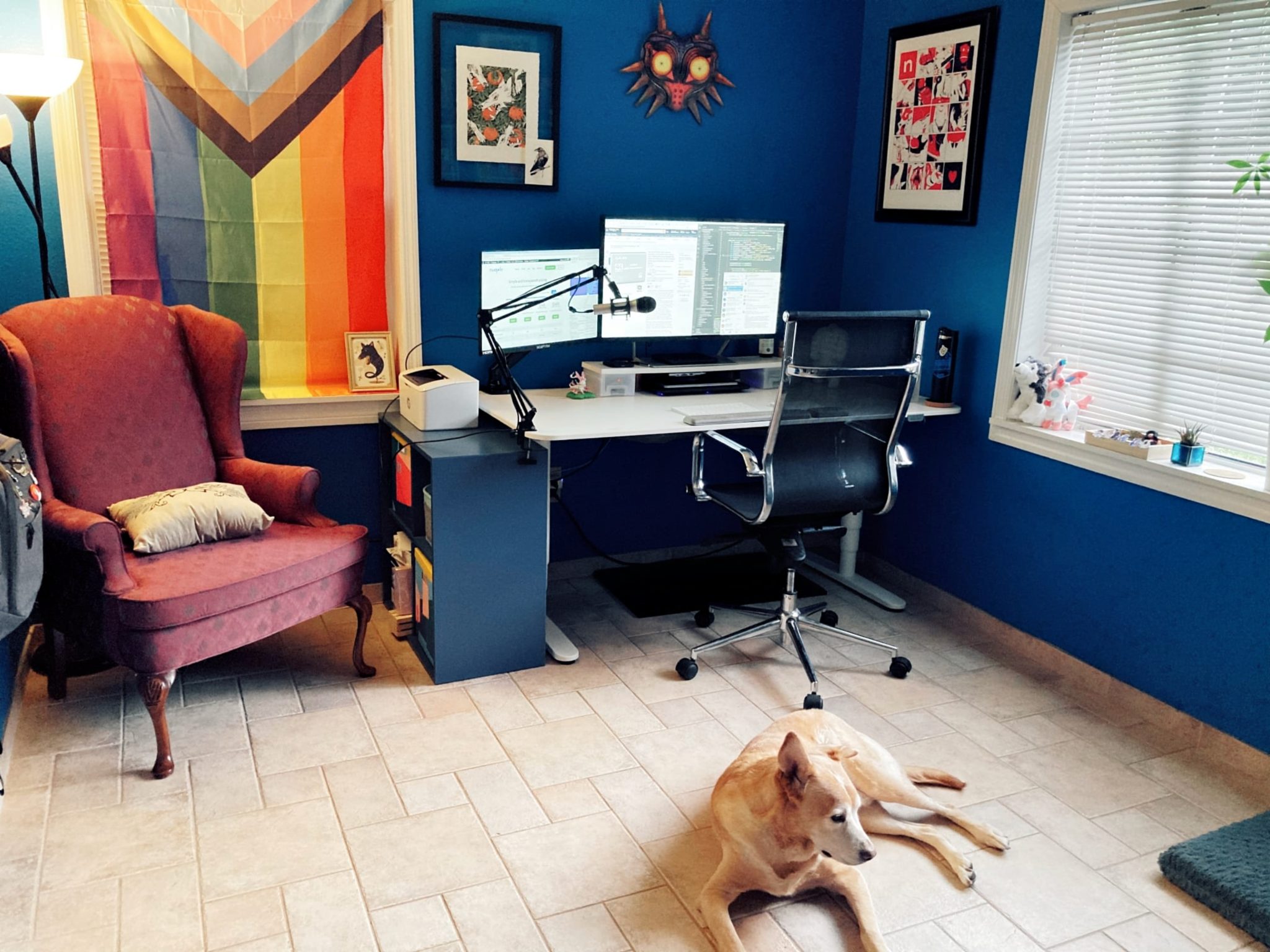
An ergonomic home office setup is a match between your body and your furniture: the target is elbows at 90 degrees, the top third of the screen at eye level, and feet flat on the floor. Most people reach it with a chair that adjusts 4-6 inches (10-15 cm) and a desk set at roughly 25-29 inches (63-74 cm) for seated work, per manufacturer spec sheets, and the fixes cost from $0 if you already own an adjustable chair up to about $600 for a sit-stand desk. This guide walks through every element step by step, so you can work comfortably for years to come. The reference material behind these numbers is collected in our ergonomics 101 resources.
Quick Answer
An ergonomic home office setup matches your body to your furniture by placing elbows at 90 degrees, the top third of the screen at eye level, and feet flat on the floor. Most setups use a chair adjustable across 10–15 cm and a desk at 63–74 cm for seated work. Fixes range from zero cost if you own an adjustable chair to about $600 for a sit-stand desk, and covering the essentials costs $250–$400.
Who Is This Ergonomic Setup Guide For?
This guide suits remote workers who spend six or more hours a day at a desk and feel stiffness in the neck, shoulders or lower back by mid-afternoon. It fits anyone building a first home office on a budget of $200-$800, and anyone who already owns furniture but has never measured the setup against their own body. It is less useful if you work from a laptop on a sofa for under 2 hours a day, where a $40-$80 laptop stand and a separate keyboard solve most of the problem. The steps below apply whether your desk is a dedicated office desk or a shared dining table, per the adjustment ranges on most chair and desk spec sheets.
How to Choose an Ergonomic Setup on Any Budget
Choosing an ergonomic setup means buying in order of impact: chair first, then monitor height, then keyboard and mouse, because the chair fixes your hips and lower back for most of the workday. On a tight budget you can cover the essentials for about $250-$400 – an adjustable chair under $250, a $30 monitor stand and a $30 keyboard – and add a sit-stand desk later. The table below shows typical 2026 price bands for each element, per current listings.
| Element | Typical 2026 price | Priority |
|---|---|---|
| Adjustable chair | $180-$600 | 1 – biggest impact |
| Monitor arm or stand | $30-$150 | 2 |
| External keyboard + mouse | $50-$150 | 3 |
| Footrest | $20-$40 | 4 |
| Sit-stand desk | $250-$600 | 5 – if budget allows |
| Task light | $30-$80 | 6 |
Prices are typical U.S. listings checked in October 2026 and move with sales, so confirm the current figure before you buy.
Why Does an Ergonomic Setup Matter?
An ergonomic setup matters because posture problems compound over a workday: sitting in a neutral, supported position keeps the spine, shoulders and wrists closer to their resting alignment instead of loading the same tissues for 6 or more hours. The target numbers are simple – elbows at 90 degrees, screen top at eye level, feet flat – and they cut the strain that builds into end-of-day stiffness, per standard ergonomics guidance. In short, ergonomics is not a luxury but part of doing the job well, and it costs nothing to adjust what you already own. Noise is the other half of focus – our noise-cancelling headphone picks for remote work cover calls and deep-work sessions.
1. Which Chair Should You Start With?
Your chair is the foundation of the setup because you spend most of the workday in it, so it is the element to get right first. Set the seat height so your thighs sit parallel to the floor and your feet rest flat, which usually puts the seat top 16-21 inches (41-53 cm) from the ground, then set the lumbar pad into the small of your back and the armrests so your shoulders stay relaxed, per manufacturer spec sheets. Look for 4-6 inches (10-15 cm) of seat-height range so the chair fits you and anyone else who shares it.
- Adjustable seat height: your thighs should be parallel to the floor.
- Lumbar support: the curve of the backrest should fill the gap in your lower back.
- Seat depth: about two finger-widths of space between the seat edge and the back of your knees.
- Armrests: set them so your shoulders stay relaxed, not shrugged.
- Breathable material: mesh backs prevent overheating during long sessions.
2. How High Should Your Desk Be?
When you sit, your desk should put your elbows at roughly 90 degrees with your forearms parallel to the floor, which for most adults means a seated surface about 63-74 cm (25-29 inches) high, per manufacturer spec sheets. If the desk forces your shoulders up or your wrists to bend upward, it is too high for your chair, so raise the chair and add a footrest rather than hunching. A sit-stand desk set to the same 90-degree rule removes the guesswork, and alternating between sitting and standing every 45-60 minutes keeps your body moving.
3. How Do You Position Your Monitor?
The top third of your screen should sit at or slightly below eye level, roughly 20-28 inches (51-71 cm) from your eyes, so your neck stays neutral instead of craning forward. Laptop users should raise the screen on a stand and add a separate keyboard and mouse, because a laptop screen on a table sits about 6-10 inches (15-25 cm) too low for most people, per manufacturer guidance. With two monitors, place the primary one directly in front of you and angle the second one in.
4. How Should You Place Your Keyboard and Mouse?
Your keyboard should sit at about elbow height with your wrists straight, so your forearms – not your wrists – carry the weight, and the mouse belongs right beside the keyboard so you never reach across the desk. A keyboard tray mounted 2-5 cm below elbow height keeps the shoulders relaxed on a fixed desk, and a palm-support wrist rest costing $15-$40 helps only when it supports the palm rather than the wrist joint, per manufacturer spec sheets.
5. How Do You Handle Lighting and Breaks?
Set your screen perpendicular to windows to avoid glare, and use a $30-$80 task light when the room is dim, because the brightest light should come from the side rather than behind or in front of the screen. Follow the 20-20-20 rule – every 20 minutes, look at something 20 feet away for 20 seconds – and stand up for a few minutes every 45-60 minutes, which is the cheapest ergonomic upgrade available, per common vision and ergonomics guidance.
The 60-Second Setup Checklist
The checklist below compresses the five steps into six checks; if you can tick all six, your hips, shoulders and neck are close to neutral. Measure the key heights once and write them down – desk height 63-74 cm, screen top 51-71 cm from your eyes, and feet flat – so you can rebuild the setup in minutes after a move, per the adjustment ranges on most chair and desk spec sheets.
- ☑ Feet flat on the floor (use a footrest if they don’t reach)
- ☑ Knees at hip height or slightly lower
- ☑ Lower back supported by the chair
- ☑ Elbows at 90 degrees, wrists straight
- ☑ Monitor at eye level, an arm’s length away
- ☑ No glare on the screen
Frequently Asked Questions (FAQ)
How high should your desk be?
Your desk should put your elbows at about 90 degrees with your forearms parallel to the floor, which is usually a seated surface of about 63-74 cm (25-29 inches) for adults between 5 ft 4 in and 6 ft 0 in, per manufacturer spec sheets. Measure from the floor to your elbow while seated, set the desk to that height, and adjust or replace the chair rather than hunching to fit a fixed desk.
Is a standing desk worth it?
A standing desk is worth it if you sit for long stretches, because alternating postures every 45-60 minutes prevents the stiffness of sitting all day rather than because standing is inherently better. A decent electric sit-stand desk costs $250-$600 as of October 2026, per current listings, and it removes the desk-height problem permanently because the surface adjusts to your standing elbow height.
Do you need an expensive ergonomic chair?
No – adjustability matters more than price. A chair with 4-6 inches (10-15 cm) of seat-height range, adjustable lumbar depth and a 5-year-plus warranty delivers most of the benefit, and a well-adjusted $180-$250 mesh chair beats a premium chair set up wrong, per manufacturer listings. Spend up only if you sit 6 or more hours a day and want a 12-year warranty.
What Should You Set Up First?
Set the chair first, then the monitor, then the keyboard and mouse, because the chair keeps your hips and lower back supported through a full workday and the rest follows from it. Building the setup takes one afternoon and can cost as little as $250-$400 for a basic adjustable chair, monitor stand and keyboard, per current listings. Work through the checklist once, write the measurements down, and your back will feel the difference every workday.
Which Ergonomic Products Should You Buy First?
Buy in priority order: an adjustable chair ($180-$600), then a monitor arm or stand ($30-$150), then a separate keyboard and mouse ($50-$150), because those three fix hips, neck and wrists for most of the workday, per current listings. A footrest ($20-$40) helps shorter users keep their feet flat, and a sit-stand desk ($250-$600) is the final upgrade once the basics are set. The links below open the specific Amazon listings for the products named in this guide.
Ready to upgrade? These links open Amazon listings for the specific products mentioned throughout this guide, so you can check current models and prices yourself. If you buy through them, we may earn a small commission at no extra cost to you — it helps keep RemoteErgoLab free.
Related Guides
- Standing Desks for Small Spaces: The Practical Guide
- 7 Best Ergonomic Chairs for Remote Workers
- Start Here — New to Ergonomics?
- Ergonomic Chairs for Small Apartments
Remote Ergo Lab is reader-supported. When you buy through links on our site, we may earn an affiliate commission. See our Affiliate Disclosure.
Disclosure
As an Amazon Associate we earn from qualifying purchases.
Shop These Picks on Amazon
Ready to upgrade your setup? The links below go to the specific products covered in this guide. If you buy through them, we may earn a small commission at no extra cost to you — it helps keep RemoteErgoLab free.