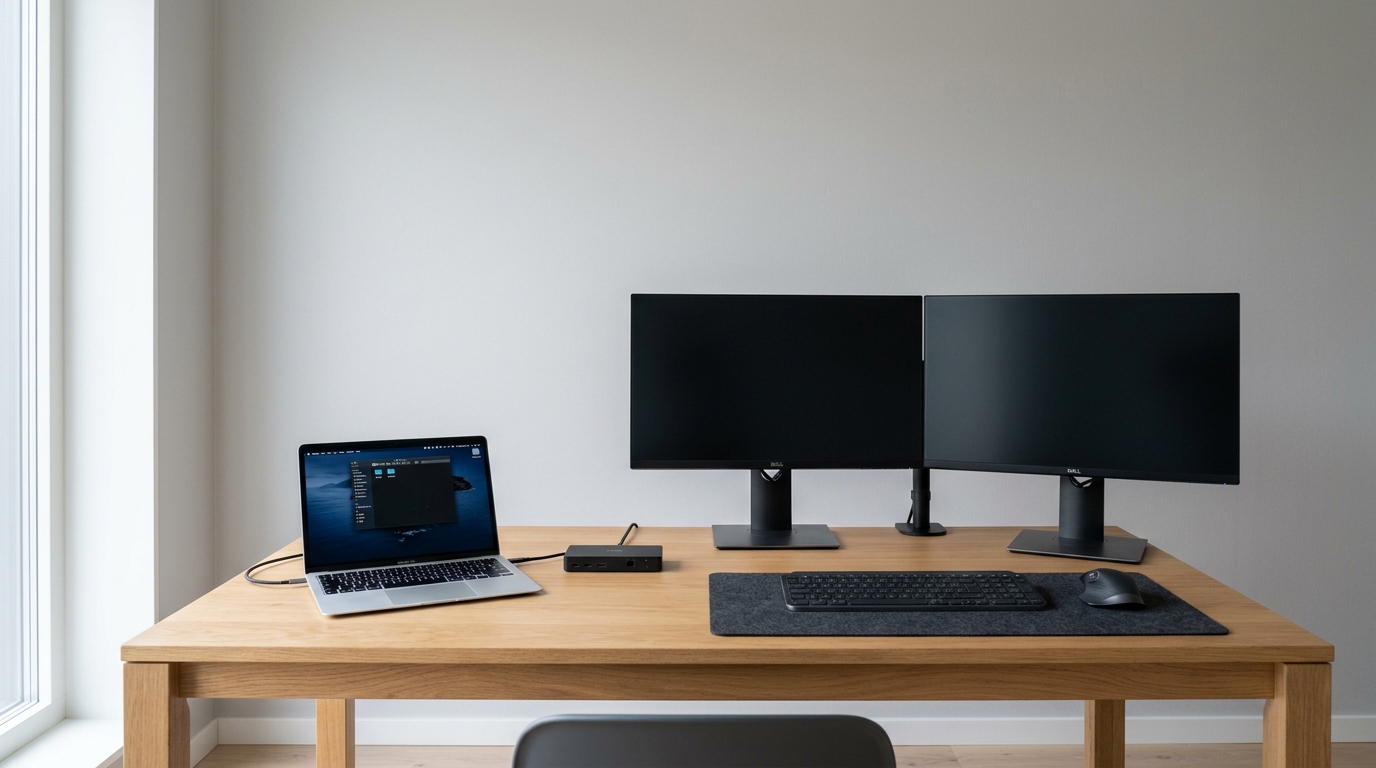
One cable is all it takes. Plug a laptop into a good dock and you get two external monitors, wired internet, a charger, and every peripheral you own. That single connection is the difference between a laptop you squint at and a desk that treats your neck and wrists properly.
Quick Answer
A laptop dock connects one cable to provide dual external monitors, power delivery, ethernet, and peripherals, raising screens to eye level and placing the keyboard where arms rest naturally. The SWITCHFLUX 10-in-1 offers dual 4K 30Hz HDMI and 100W charging for roughly $30-$45, while the Belkin DisplayLink supports dual monitors on base-model Apple silicon and the UGREEN Revodok Max delivers dual 4K 60Hz with 96W charging.
External screens at eye level, keyboard and mouse where your arms naturally rest — that fixes more posture problems than any chair upgrade. The dock makes it painless to use daily. Based on specs and user reviews, these five docks cover the setups remote workers actually run.
Quick Picks
- SWITCHFLUX 10-in-1 USB-C Docking Station — the budget pick. Two HDMI outputs at 4K 30Hz, 100W power delivery, gigabit ethernet, roughly $30-$45.
- Belkin DisplayLink Dual Display Docking Station — the MacBook pick. DisplayLink pushes two external monitors even from base-model Apple silicon.
- 15-in-1 Triple 4K USB-C Dock (120W power supply) — the three-screen pick. Two DisplayPorts plus HDMI run three monitors at 4K 60Hz.
- UGREEN Revodok Max 13-in-1 Thunderbolt 4 Dock — the premium pick. Dual 4K at 60Hz, 96W host charging, three Thunderbolt ports.
- WAVLINK Thunderbolt 5 Dock 13-in-1 — the future-proof pick. 120Gbps bandwidth, built-in M.2 SSD slot, 2.5G ethernet.
How We Chose
A dock earns a spot here only if it handles the three jobs remote work depends on: usable monitor resolution, a laptop that stays charged, and a stable connection during video calls. We compared spec sheets and patterns across thousands of user reviews to find docks that do all three without surprises.
Ports mattered more than brand names — ten ports sharing one USB controller throttle an external drive the moment the webcam starts. The picks favor clear video paths, honest power delivery, and ethernet that hits gigabit speeds. Check current price before buying.
Comparison Table
| Dock | Best For | Video Output | Charging | Typical Price |
|---|---|---|---|---|
| SWITCHFLUX 10-in-1 | Budget dual monitors | 2x HDMI, 4K 30Hz | 100W PD | $30-$45 |
| Belkin DisplayLink Dual Display | MacBook dual monitors | 2x display, up to 4K | Host pass-through | $180-$250 |
| 15-in-1 Triple 4K USB-C Dock | Three Windows monitors | 2x DisplayPort + HDMI, 4K 60Hz | 100W PD, 120W PSU | $120-$170 |
| UGREEN Revodok Max 13-in-1 | Premium Thunderbolt setups | Dual 4K 60Hz or 8K 30Hz | 96W host, 180W total | $280-$350 |
| WAVLINK Thunderbolt 5 Dock | New TB5 laptops, SSD storage | Up to three displays via TB5 | 140W PD input | $250-$330 |
Reviews
SWITCHFLUX 10-in-1 USB-C Docking Station — the budget pick
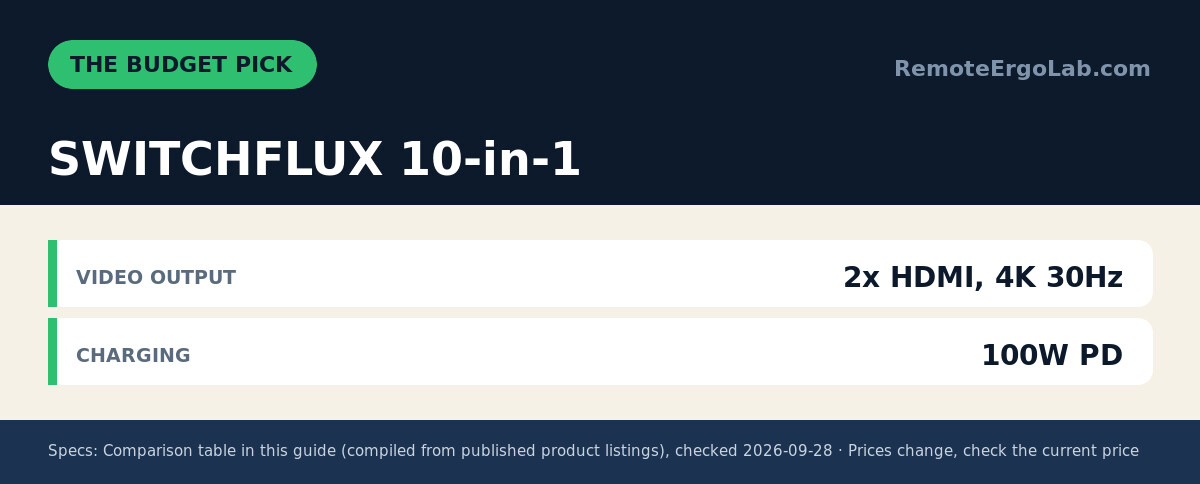
Most cheap docks cheat on video: one HDMI port, or two that share a single signal. The SWITCHFLUX 10-in-1 keeps two HDMI outputs at 4K 30Hz — fine for documents, email, and dashboards — plus 100W power delivery, gigabit ethernet, and 5Gbps USB data ports.
Owners praise plug-and-play behavior with Windows and USB-C MacBooks, no driver needed. Trade-offs: 30Hz makes fast scrolling less smooth, and the plastic shell is nothing special. At typically $30-$45 (check current price), it is the cheapest route to a dual-monitor desk.
Belkin DisplayLink Dual Display Docking Station — the MacBook pick
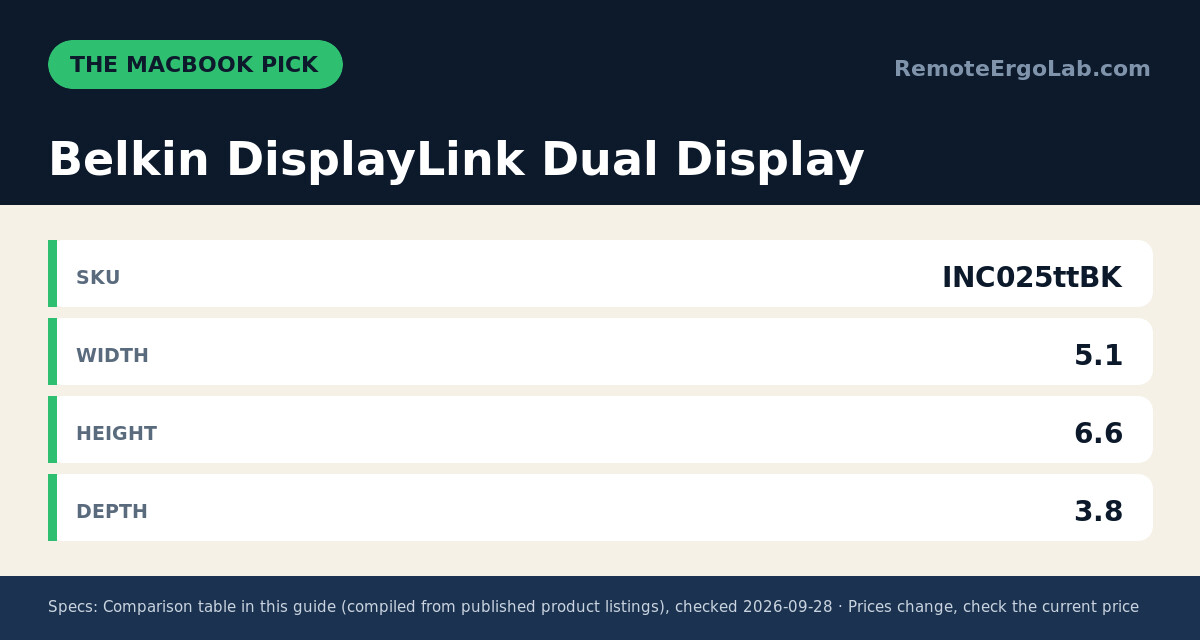
Base-model MacBooks with Apple silicon drive only one external screen through their own video output. DisplayLink docks bypass that wall by rendering the second desktop in software — hence Belkin’s dual-display dock showing up in reviews from Mac users running two monitors.
It adds two display outputs, USB ports, and a wired network jack that keeps video calls stable when Wi-Fi wobbles. The DisplayLink driver must be installed and costs a little CPU use, but the trade is obvious for anyone stuck at one screen. Expect roughly $180-$250 — check current price, since Belkin discounts often.
15-in-1 Triple 4K USB-C Dock — the three-screen pick
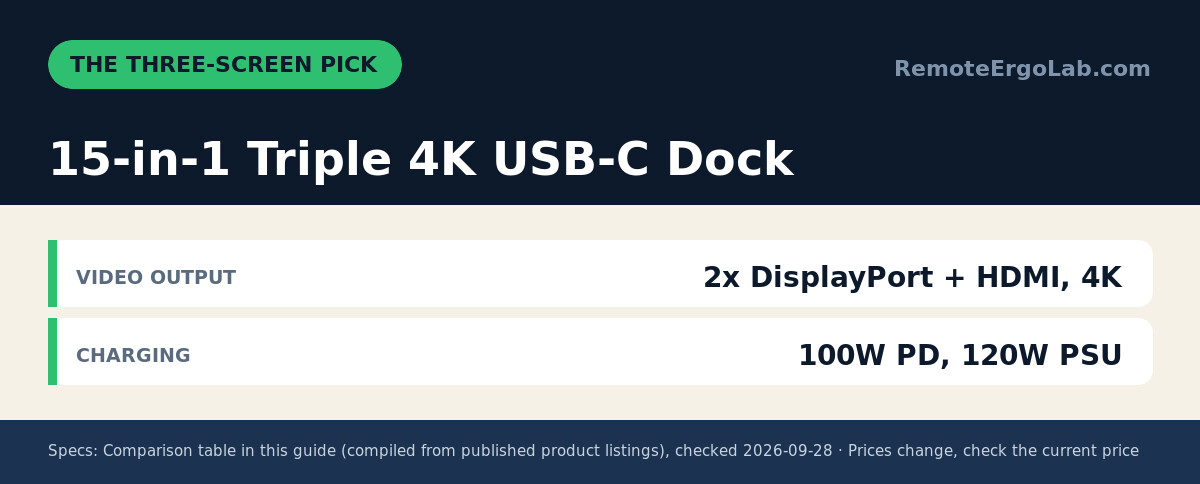
Three screens at full 4K 60Hz is a demanding ask, and this 15-in-1 dock delivers through two DisplayPort outputs and one HDMI, powered by a 120W supply that leaves 100W for the laptop. For analysts or anyone living in multiple apps, that extra real estate beats a faster CPU.
Ports cover the rest of a modern desk: USB 3.2 data ports, SD and microSD readers, gigabit ethernet. Reviewers note the 120W adapter is chunky, so plan desk space or mount it underneath. Around $120-$170 (check current price), it undercuts most rivals.
UGREEN Revodok Max 13-in-1 Thunderbolt 4 Dock — the premium pick
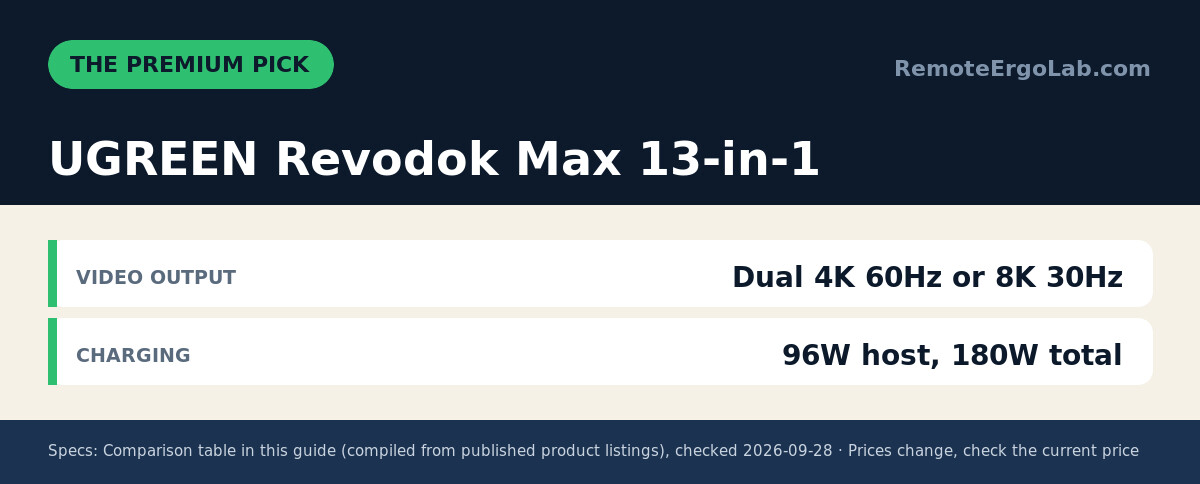
Thunderbolt 4 raises the ceiling: dual 4K monitors at 60Hz, a single 8K display at 30Hz, and 40Gbps transfers. The Revodok Max uses that bandwidth well, with three Thunderbolt 4 ports for daisy-chaining and fast SSDs, plus 96W host charging — enough for a 14-inch MacBook Pro.
Around the edges sit three USB-A ports, two USB-C ports, gigabit ethernet, an SD/TF 3.0 card reader, and a 3.5mm jack. Reviewers call it set-and-forget: drivers rarely needed, displays recognized instantly, aluminum body stays cool. It costs more up front, typically $280-$350 — check current price.
WAVLINK Thunderbolt 5 Dock 13-in-1 — the future-proof pick
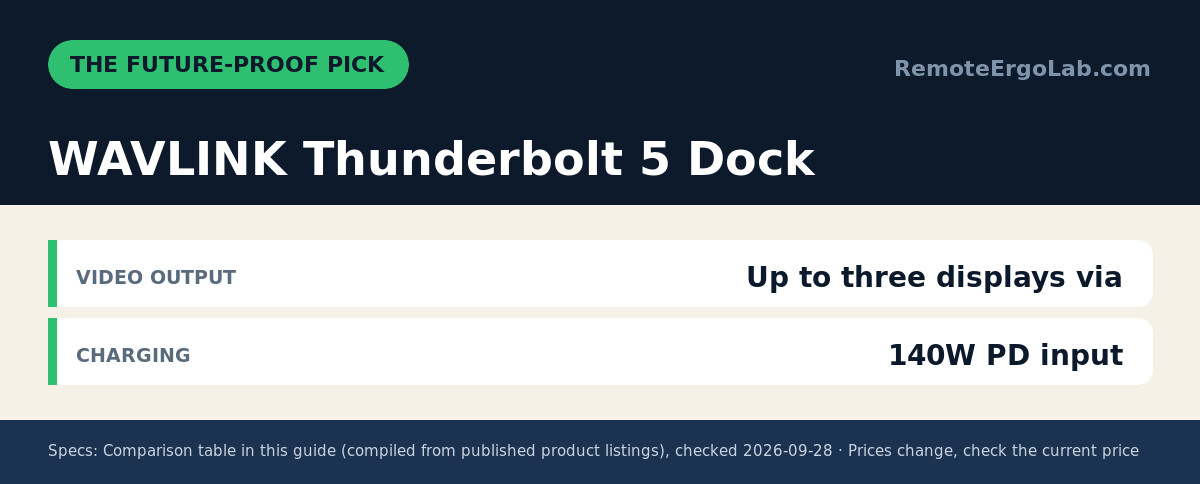
Thunderbolt 5 roughly doubles TB4 bandwidth, and the WAVLINK 13-in-1 is one of the first docks built around it. Data moves at up to 120Gbps, a built-in M.2 NVMe slot runs backup drives at 64Gbps, and 2.5G ethernet outruns the gigabit jacks on almost every other dock. With 140W power delivery it feeds even hungry creator laptops, and it works with TB4 machines too.
Owners note the SSD slot needs a screwdriver. The price reflects the new standard: typically $250-$330, check current price. Running an older laptop? The TB4 options above cost less.
How to Pick the Right Dock
Work backward from your monitors. Three questions settle most decisions:
- What does your laptop’s port support? Thunderbolt 4 and 5 laptops handle any dock below. Plain USB-C laptops need DisplayPort Alt Mode support, or displays will not light up.
- What resolution do your monitors need? Two 1080p screens are easy for any dock. Two 4K screens at 60Hz need Thunderbolt, DisplayLink, or two dedicated video paths.
- How many watts does your charger deliver? Match it with the dock’s power delivery. A 65W laptop on a 100W dock charges fine; a 100W laptop on a 65W dock slowly loses ground under load.
Wired ethernet earns its place too — video calls stutter on flaky Wi-Fi. And think about where the dock lives: an under-desk mount beats a port-heavy brick in the middle of your mouse pad.
FAQ
Can a USB-C dock run two monitors on a MacBook?
Only with a DisplayLink dock like the Belkin above, or on multi-port MacBook Pros. Standard USB-C docks are limited to one external display on base-model Apple silicon.
Will the dock charge my laptop while I work?
Yes — match the dock’s power delivery to your charger’s wattage or exceed it. A 100W dock keeps most 13- and 14-inch laptops topped up under load.
Is Thunderbolt worth the extra money?
For dual 4K at 60Hz, daisy-chaining, or fast external storage, yes. For one 1080p monitor and web work, a budget USB-C dock in the $30-$45 range does the job.
Why does my dock need its own power supply?
Multiple monitors plus laptop charging draw more power than a USB-C port alone provides. External adapters deliver consistent wattage; bus-powered hubs drop features when power runs short.
Related Guides
- Best dual monitor setup for small desks
- Cable management for small desks
- The complete ergonomic home office setup guide
- Best Laptop Stands for 17-Inch Laptops 2026: 5 Picks
- Best Laptop Stands for Bed & Couch 2026: 5 Picks
Shop These Picks on Amazon
Ready to compare prices? These links open Amazon listings for the specific products covered in this guide, so you can check current models and prices yourself. If you buy through them, we may earn a small commission at no extra cost to you — it helps keep RemoteErgoLab free.
- 10-in-1 USB-C Dock Dual Monitor on Amazon
- Belkin DisplayLink Dual Display Docking Station on Amazon
- USB C Docking Station 3 Monitors Triple 4K@60Hz Dock on Amazon
- UGREEN 13-in-1 Thunderbolt 4 Docking Station on Amazon
- WAVLINK TB5 13-in-1 Dock on Amazon
As an Amazon Associate we earn from qualifying purchases.